Operating Systems:
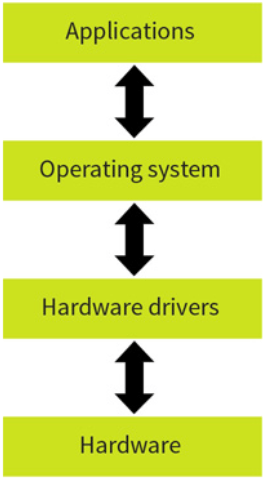
The operating system is a set of software that manages all the hardware and software on a computer. It enables the user to interact with the hardware and handles input and output devices. The OS sits in between the applications you run and the hardware, using hardware drivers to communicate. When a programmer designs a program, they do not need to worry how and where it is saved on the computer, the OS handles that.
For example if an application prints something, it hands the task to the OS and the OS sends the instructions to the printer and sends the correct signals using the device driver.
It manages the computer’s resources such as storage, memory, input and output devices as well as all of its software. It also allows you to communicate with the computer without knowing how to speak the computer’s language.
No matter what type of computing device it is, the operating system is always responsible for:
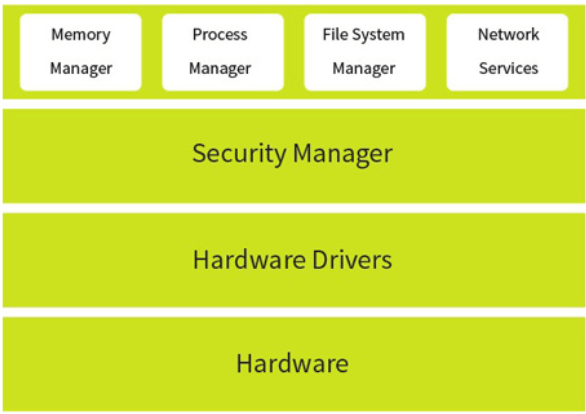
- Memory Management
- File Management
- Input & Output Management
- Processor Time Management (scheduling)
- Providing the human/computer interface
- Providing the system services such as printing spooling
- Handling all types of error while doing the above
Different OS’s such as Windows or linux or MAC OS.
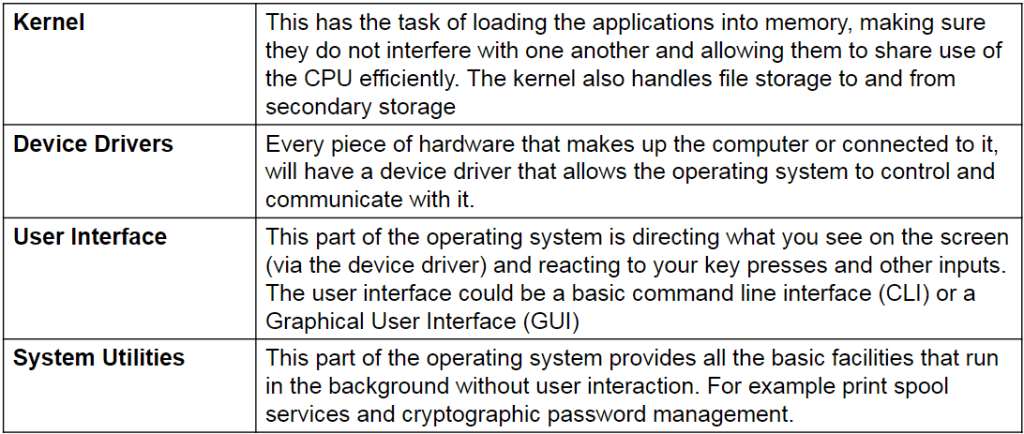
Parts of the OS:
Practice Question:
Using an example, explain why an Operating System is essential when running applications on a computer. (4 marks), Criteria: 2 for detailed reason why an operating system is needed to run a program, 2 for detailed example of a programs need for an OS.
The reason why applications require an operating system is because they need something to manage it and connect it to other parts of the device. The OS acts as this bridge from the application to the hardware of the computer. For example, the program relies on the OS to send and receive signals to and from a printer, using drivers to send correct signals.
Types of Operating Systems:
- Distributed OS
- Embedded OS
- Multi-Tasking OS
- Multi-User OS
- Real-Time OS
Distributed OS:
This is where multiple systems are linked by LAN and act as one OS. Processes can move between different computers so tasks can be split among the computers to split the workload.
Embedded OS:
This is a specialized operating system that is designed to perform a specific task for a device that is not a computer. For example, an MP3 player.
Multi-Tasking OS:
This is where it enables the user to run more than one task at a time. For example, you can run 2 programs at a time. Nearly all systems run a multi-tasking OS, such as windows or mac. Tasks can be interrupted by new tasks of higher priority.
Multi-User OS:
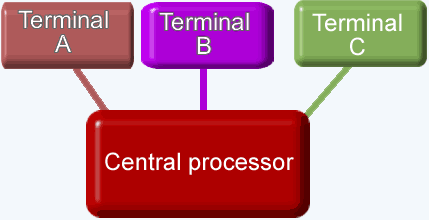
This is where a computer system allows multiple users on different computers to access a single system’s OS resource simultaneously.
Real-Time OS:
This is where the OS uses a single processing core but is able to perform multiple tasks. It does this by quickly switching between programs based on their priorities which makes it seem as if it is running multiple processes at once. This OS can guarantee a certain capability within a specific time constraint.
There is 2 types of real-time OS: Event driven and time sharing.
Event-driven is when it switches tasks only when a higher priority task comes in.
Time-sharing is when it switches tasks on a regular clock interval, and on events.
Spooling:
Spooling is the process of sending an output (intended for a printer or other peripheral) to a file on the memory or secondary storage temporarily to be forwarded to the printer when the printer is ready. Spooling is essentially a buffer between the fast CPU and slow printer.
Advantages of Spooling:
- Avoids delays – printers (or other peripherals) are relatively slow and so spooling frees up the processor quickly and allows it to get on with other processing jobs.
- Allows more than one print job to be submitted at a time – each job will be held in a queue and printed one at a time – the use of a queue also allows priorities to be set.
- In a multi-user system, provides a method of keeping print-jobs separate – it means that printouts will not be muddled up.
- It is important to realise that the output itself is not placed in the queue. The queue simply contains the details of the files that need to be printed.
Booting:
This is the process of starting the computer. The main sequence of start up events are:
To check basic hardware, load low-level drivers and then initialise the loading of the operating system into the memory. This process is begun by a boot file located in the BIOS.
When a computer is switched on, the RAM is empty so the CPU has no instructions to follow. Booting happens in small steps because at this point, the computer is essentially dumb. It is not aware of any hard disks, or any peripherals such as the screen or keyboard.
The piece of software involved in booting up a computer is the BIOS (Basic Input Output System) which is stored in the ROM.
BIOS:
This is not part of the OS and needs to work before the OS is loaded up. It is stored on a BIOS chip on the motherboard. It contains the most basic hardware settings of the computer and a set of instructions to begin the boot up process. Some of the basic hardware settings include hard disk details, memory capacity and memory timings. The boot order can also be set to look at which drive to find the operating system.
First Stages of Boot up:
The first thing that happens when the ‘on’ switch is pressed is that the power supply turns on.
A power supply can take a second or more to become stable. Once it is producing a steady output, it sends a ‘Hardware Reset’ signal to the CPU. This signal travels along a wire directly to the CPU (it is part of the control bus)
The CPU Hardware Reset command is hard-coded by its designers to execute an instruction at a specific location within the BIOS chip. This location contains a ‘Jump’ command that points it to the starting address of the BIOS start-up program. This first instruction is loaded into the CPU program counter and booting is underway.
POST (Power On Self Test):
At this point there is nothing in the RAM so the computer knows nothing about its own hardware.
The BIOS then does some hardware and system health checks including:
- BIOS is not corrupted
- System chips are OK
- Processor is OK
- System Memory is OK
- Keyboard is present
- Video display memory is OK
If a problem is detected, a small speaker on the motherboard emits a set of “beep codes” to inform the user of the problem as the screen is not on at this point.
Hardware Prep:
Once POST has been passed the BIOS will initialise the internal devices such as video cards and drives, following the boot order.
Loading the OS:
When the CPU boots up a drive, it looks at a part of the drive called the Boot Sector and runs the instructions stored there. Different drives have different instructions. For example, a hard drive contains a table telling the CPU how the memory on the drive is partitioned called the Master Boot Record. From this table the BIOS finds which drive holds the OS and goes to that drive and looks for the Boot Loader. After the OS is loaded into the memory a script called the boot file is run. This prepared the computer to use and contains things such as desktop appearance.
Drivers:
This is a core part of the operating system. Every piece of hardware that needs to communicate with the OS needs a device driver to do so. Device drivers differ from each OS so if you install a different OS into your computer you need to check the drivers. Device drivers are stored in a file called the registry.
Virtual Machines:
Programs work differently on different computers, for example a Windows pc program won’t run on an Xbox.
To solve this using virtual machines, you get your computer to create a copy of the software you need to run the program and run the program inside that software. “a computer inside a computer”.
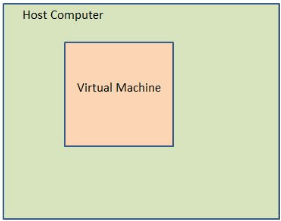
This process is called virtualisation. There can be many VM’s running on a single host.
Just like any other computer, you can install an OS in the virtual machine and run the desired programs.
The only limitation is that you cannot create a virtual machine that requires more hardware resources than your real computer has. For example, you cannot run a desktop computer program on a small handheld calculator processor.
Benefits and Uses:
- You can run older applications that are not compatible with newer operating systems.
- You can run multiple operating systems on a single computer.
- Virtual machines are very easy to copy and back up once they’re installed.
- Shielding malware. You could use a virtual machine to open files you think might contain malware but you still need to check if it is real or not.
- Web hosting companies can create and sell many ‘virtual servers’ within a single physical server.
Disadvantages:
- Programs will run less efficiently (ie more slowly) on a virtual machine than they would on the original hardware.
- You still need proper licences to run the operating system and applications within a VM – they are under copyright law as any other, so they cannot just be copied.
Intermediate Code:
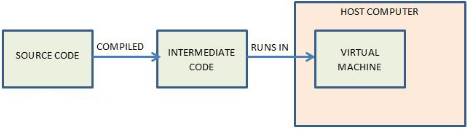
In addition to hosting OS’s, virtual machines are also used to run code designed for a specific virtual machine. Instead of a programmer rewriting source code for all different OS’s, they can write it and compile it into Intermediate code, or Byte Code, which is designed for a virtual machine. Programs can then be run on a virtual machine, no matter the OS that the host computer is running.
Examples:
- The Java Virtual Machine (JVM) is popular and has been ported to nearly all hardware platforms. It is designed to run Java intermediate code. The source code is written in Java which is then converted into intermediate code by the compiler.
- Another example is the Adobe Flash Actionscript Virtual Machine (AVM). The code is written in Actionscript which is then converted into flash byte code to run in the AVM.
Benefits:
- Portable. The same code can run on any hardware platform that supports the virtual machine.
- No need to change the source code.
Issues:
- Security. The current version of the VM may have security vulnerabilities that allow rogue code to take control of the host computer. This is why this type of VM is patched quite frequently with updates.
Summary:
- A VM is designed to simulate a fully functioning computer but in software.
- There can be may VM’s on a single host.
- There are VM’s designed to emulate the hardware of a computer.
- Running a VM allows multiple OS’s to run to be used on a host computer.
- There are both free and commercial virtualisation software available.
- Running an OS on a VM is less efficient than running it on original hardware.
 Computer Science Notes