An interrupt is a signal from a device or program to request processing from the CPU. Process scheduling is handled by the OS and decides when a process is run and for how long.
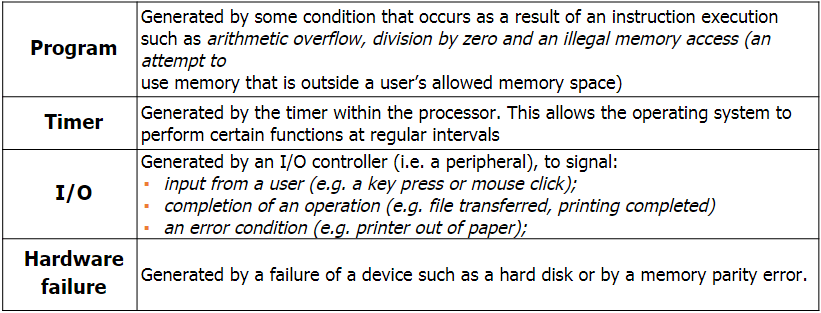
It needs to respond to input devices and other system events, for example when the keyboard is pressed or the hard drive is ready to serve another request, the device sends an interrupt to the CPU telling them to process a keyboard press or hard drive is ready for more data.
When in interrupt is sent, the CPU receives it but the OS decides whether to perform it or ignore it.
When an interrupt occurs, the CPU on the next instruction cycle will then run a special OS code that inform it of an interrupt. It will then interrupt the currently running process and handle the request and move back onto the previous process.
It is important for the OS to handle these interrupts as it knows more about what the user is doing. When an interrupt occurs, the CPU informs the OS rather than dealing with it itself and the OS makes the decision weather or not to execute it.
Example:
A user wishes to save a 30 MB file onto the hard drive. In order to do this, the file will need to be stored in small chunks of 1 MB.
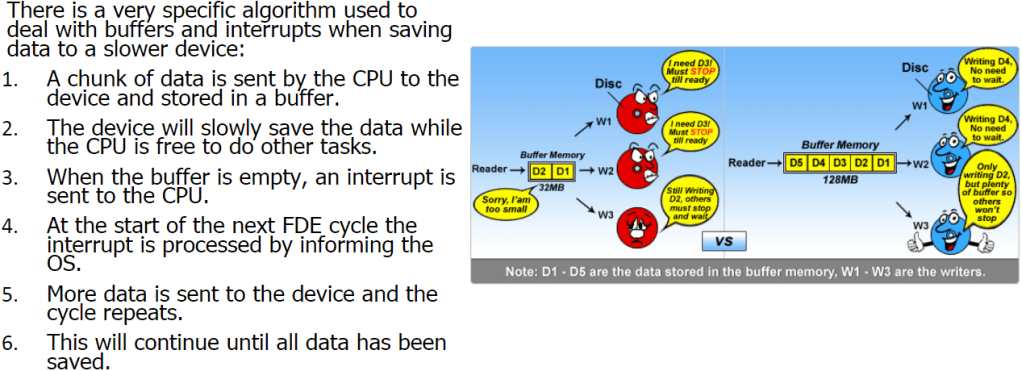
Using the buffer and interrupt system, the first chunk is sent to the hard drive, which, in turn, writes it to the disk.
While this is occurring, the CPU will continue doing other tasks, such as dealing with keyboard interrupts or playing music.
Once the hard drive has finished saving the file, it sends an interrupt to the CPU requesting more data, which is sent by the CPU.
This cycle will continue until the file has been saved all 30MBs.
It is important to remember that the CPU is much faster than any other part of the computer, including the user. If the CPU waited for the hard drive to finish saving before it did anything else a lot of CPU cycles would be wasted. Interrupts allow the CPU to make much better use of time, increasing efficiency.
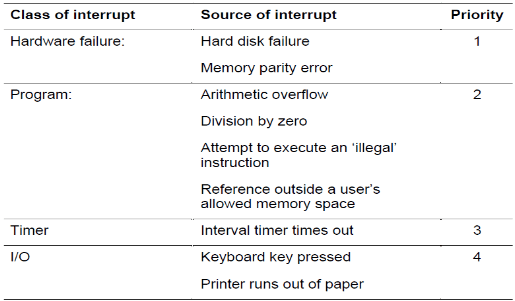
Priority of interrupts:
Some interrupts are more important than others so if 2 interrupts are requested at the same time then the system compares their priority and executes the higher priority first. Things like hard disk failure needs immediate attention whereas something such as the printer running out of paper can wait.
Interrupt Handling:
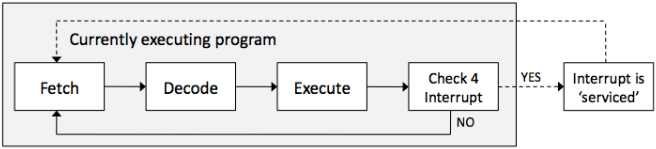
There is another step to the Fetch-Decode-Execute cycle. A check for an interrupt is done at the end. If there is an interrupt, then the address in the program counter will be temporarily be placed in a stack and then load the interrupt command and execute that then take the previous command back from the stack and then continue with the previous task.
Buffers:
A buffer is a small block of memory within devices such as printers or keyboards where the work that that device is performing is stored. This is important because if you press more keys on your keyboard and the OS is not ready to serve the first key, then instead of losing the key strokes, it is stored in the buffer until the OS is ready to process it. Hard drives also contain a buffer. When a CPU sends data it is stored in the buffer before being written to the physical disk. This increases overall system performance as the CPU can work on other tasks.
When data is stored on or loaded from any device, buffers will be used.
Scheduling:
Scheduling is when the OS decides how and when a process is swapped in and out of the CPU, enabling multi-tasking. Each OS has a different way of handling scheduling, but these are hidden from the public.
A process is a piece of software that is currently being managed by the scheduler in the OS.
Scheduling must not be confused with interrupts. Interrupts are hardware signals sent to the CPU and handled by the OS whereas scheduling makes decisions on what should run next or which should be interrupted, known as pre-empting.
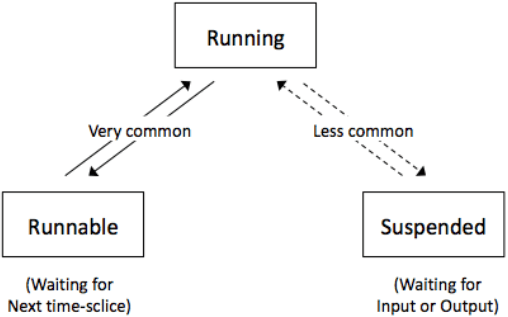
Running: when the process has control of the CPU.
Ready-to-run (Runnable): a process is in a queue waiting for the CPU.
Blocked/Suspended: a process is waiting on an I/O operation such as the hard drive.
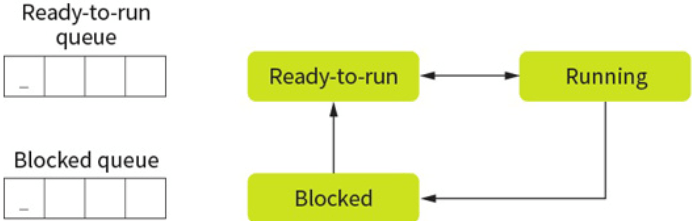
Only one process can be run on a single CPU core at a single time. This process will be in the ‘running state’ or just ‘running’. Other processes will be either in a ‘ready-to-run queue’, waiting for their turn with the CPU, or in a blocked state.
When a process is waiting for a device or external operation to complete, this process is blocked. A process is never in the ready to run queue when waiting for an I/O operation, but should place itself into a blocked state to give its place to something else.
Running Process:
Complete the task (and close): This removes the process from scheduling completely and is the equivalent of the user clicking on quit. A process can elect to stop itself or it may have completed the processing.
Be interrupted by the scheduler: Not to be confused with interrupts, which will stop a process so that the OS can deal with an event. This is where the scheduler has decided that the process has had enough CPU time and will swap it for another process. The currently running process is then placed in the ready-to-run queue based on the scheduling algorithm.
Become blocked: In this situation, the process is moved to the blocked queue immediately. An interrupt could cause this to occur. Thus, preventing wasting CPU time.
Give up CPU time: A process could voluntarily give up CPU access with the view of getting it back in the near future. A process which does this is known as a well-behaved process and tends to be given higher priority in most modern scheduling algorithms.
Scheduling Algortihm:
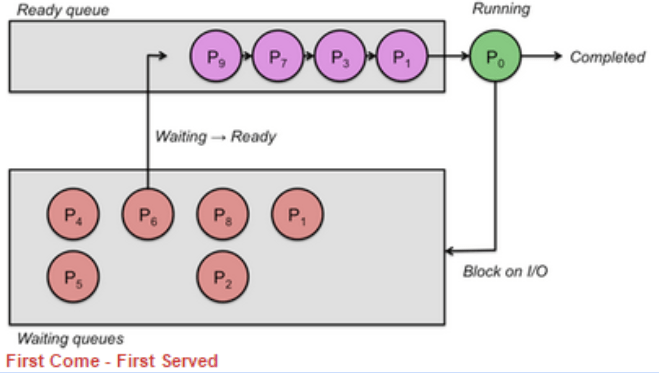
First Come First Serve (FCFS):
This is the simplest form of algorithm but is generally inefficient in terms of resource allocating.
No matter how long the process takes to run, it always keeps the order of which was the first to arrive. This is why it is very inefficient.
Round Robin (RR):
This algorithm, each process is given a set time. When this time is up the CPU moves on to the next process, no matter if it is finished or not. This ensures fairness.
Shortest Job First (SJF):
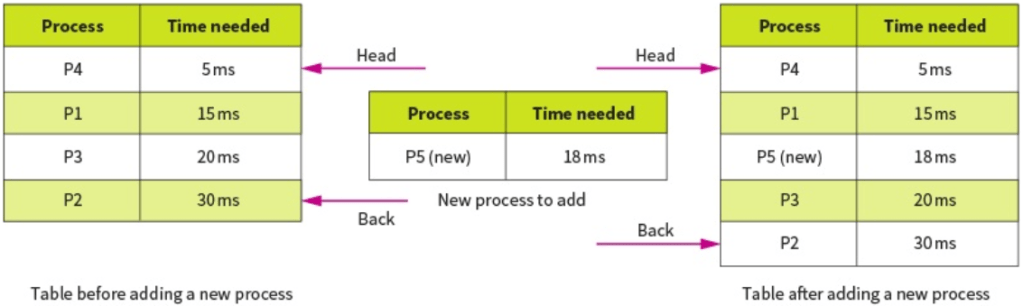
This is the most efficient in terms of average time taken. When a new task is submitted, it is placed into the queue based on how long it will take to complete. The shorter the time, the further up the queue it will be placed.
The OS predicts the time taken by each task by analyzing how long similar tasks took in the past.
This is similar to round robin except tasks are allowed to complete.
Shortest Remaining Time (SRT):
This is very similar to shortest job first but the time the tasks take is updated when they get a chance to process before being interrupted by a shorter task. This is different to SJF because the time remaining to complete the task is updated whereas in SJF it isn’t updated and the time it takes is based on the entire task, even when it has been partially processed. This allows the longer task to move up the queue as the time becomes shorter to avoid starvation.
Multi Level Feedback Queues (MFQ):
The above scheduling algorithms use single queue for scheduling, the ready to run queue.
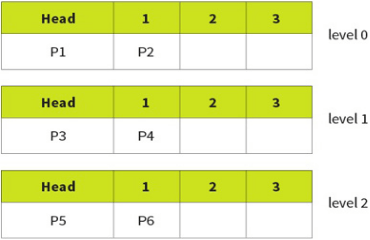
This algorithm uses 3 queues, 0, 1, 2 with 0 being highest priority. Each individual queue operates on a FCFS basis but tasks in queue 0 will always be run before tasks in 1 and 2.
However, this can easily lead to starvation so a promotion/demotion system is implemented:
New processes always added to back of 0.
If a process gives up the CPU on its own accord it is added back into the same queue.
If a process is pre-empted (stopped by scheduler) it is demoted to a lower level.
If a process blocks for I/O, it will be promoted 1 level.
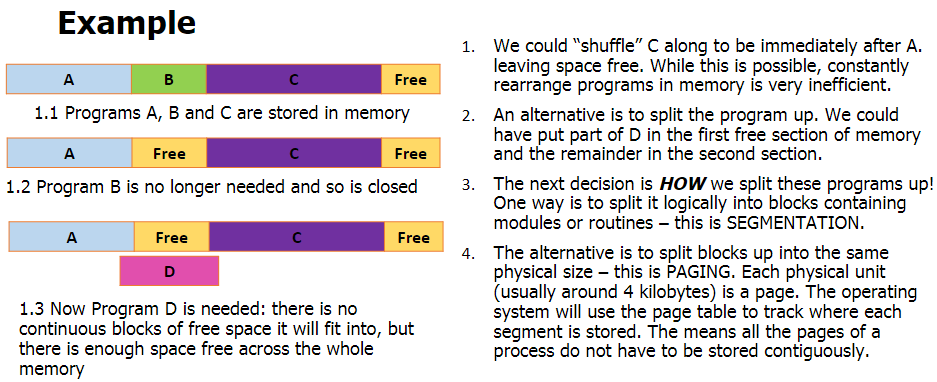
Paging is when main memory is divided into fixed size blocks called page-frames and programs are divided into blocks of the same size called pages. Pages are swapped between secondary storage and page-frames as necessary.
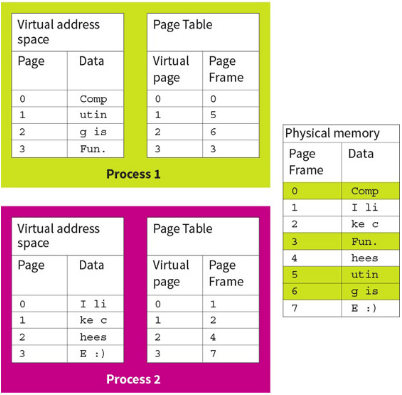
Each process has its own view of pages and each memory access is made up of two parts: the page number and the offset within that page.
All processes use a virtual memory space and aren’t aware where their pages are physically stored. They are also unaware of other processes and where their pages are.
Processes use their own memory address space, known as the logical address space. It is the job of the memory management unit to translate the addresses.
Example:
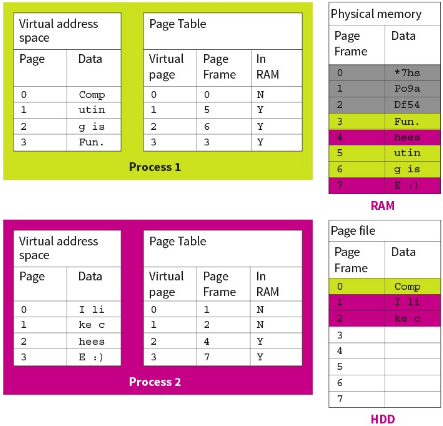
Here, there are 2 processes, each with their own virtual memory space. The page table translates the virtual page number to where it is held physically in the memory. The program sees memory as a continuous block, as it is in the virtual memory, but not in physical memory. It relies on the page table to translate it.
If the process tries to access addresses outside its paging table, an error occurs.
Segmentation:
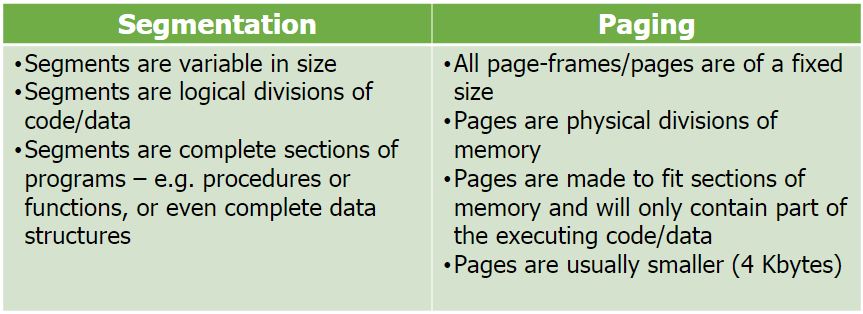
This is where main memory is divided into variable sized blocks called segments where each segment corresponds to a program routine or a data structure/array.
Segmentation is an alternative way of allocating memory to processes, where segments are variable sized rather than fixed. Therefore, they can request the exact size needed in the memory instead of forcing data into fixed sized chunks. This is ideal to store blocks of code, such as a library, or files where the size is not known in advance.
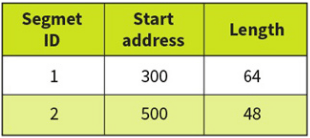
In order to store different sized segments, the memory manager needs to store the length of each segment in a segmentation table.
Each segment is protected so only routines with the right “permissions” can access the data within.
The segments may be placed anywhere in the main memory, but the instructions and data in any one segment are contiguous(next to each other). When a different program routine or data is needed it is loaded as a segment.
Modern OS’s use a combination of paging and segmentation in their memory management.
Paging VS Segmentation:
In practice, paging is actually a type of segmentation.
Similarities:
Allow programs to run even when there is not enough physical memory space.
Provides a means by which only part of the program needs to be in the memory.
Split programs into blocks which are stored on the disk.
Split memory into blocks.
Swaps segments and pages between disks and memory when necessary.
Differences:
Virtual Memory:
Virtual memory is when the computer uses secondary storage (e.g: hard drive) to simulate additional main memory to overcome the limitation of physical memory capacity.
For example, this can be done when the computer sees that a page has not been used in a while so it moves it to the virtual memory to free up some space in the main memory.
In the hard drive, pages are stored in a special file called the page file. When a page is moved over, the memory manager takes note on what pages are in the page file and the page number to locate them in the future.
Essentially, virtual memory extends main memory to allow programs to run even when there isn’t enough physical main memory available, at the cost of performance.
However, programs are not able to run while in the virtual memory as they are in a suspended state. They need to be swapped back into the main memory to begin running again otherwise you are left with an unresponsive program.
If lots of poor choices are made by the computer then programs will constantly be moving in and out of the memory, leading to unresponsive processes, known as thrashing.
When virtual memory is implemented into a system, an additional column in created in the page table, specifying if the page is in the memory or page file. When a page is loaded between the memory and page file, the memory management unit has to update the page table which can increase latency further.
A database is data that is stored in an organised, structured way. E.g: your contacts are in alphabetical order.
Key Terms:
Table = Made up of Rows and Columns.
Field = Column
Record = Row
Entity = An element that is being recorded in the database.
Primary Key = Unique identifier for each record.
Foreign Key = The element that links in the join table. Can’t have a relational database without this.
Composite Key = When you combine more than 1 (usually 2) field to create a primary key.
Candidate Key = An element that could possibly be a primary key. We choose between these to be a primary key.
Secondary Key = A non-unique identifier. Makes searches faster.
Queries = A way to retrieve a certain set of data according to the specified criteria.
Form = A way to create a UI (user interface) containing input boxes to input data easier.
Report = Visualized form of queried data.
Flat File Database = When there is only one table in a database.
Relational Database = When there are multiple tables for each element to reduce data redundancy.
Data Redundancy = When data is repeated, making it unorganized and inefficient to search a query.
Data Integrity = The accuracy, completeness, and consistency of data and no redundancies. Also making sure data is secure.
Referential Integrity = The accuracy and consistency of the data in tables, making sure they are all valid and complete, eliminating data redundancy by creating relationships with foreign keys. (how to make data integrity)
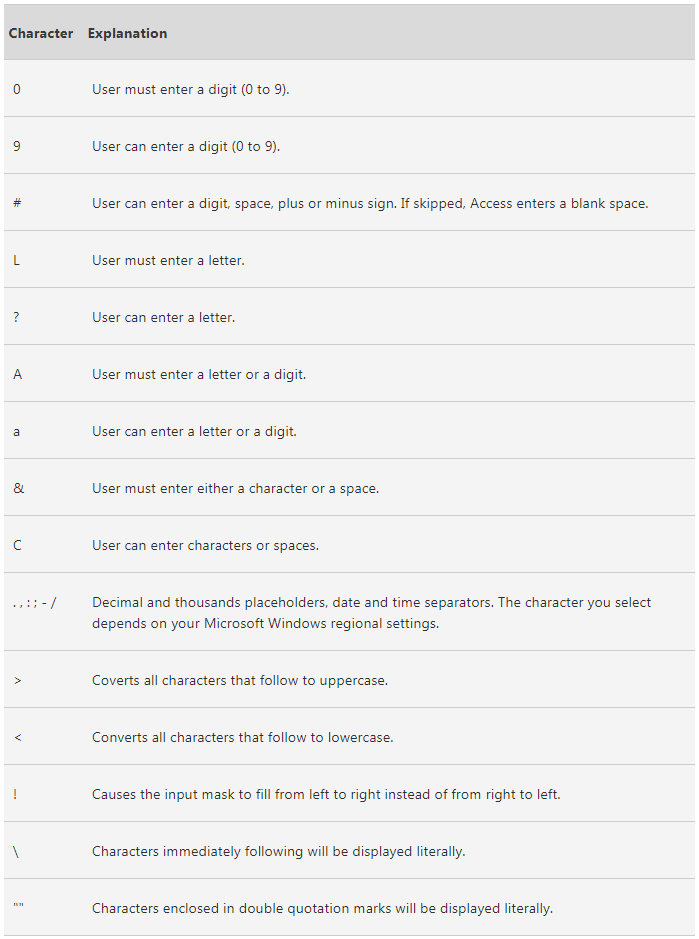
Validation: Data types, Field Size, Required, Drop-down List, Input Mask.
Input Mask Table
Validation vs Verification:
Validation is an automatic computer check to ensure that the data entered is sensible and reasonable. It does not check the accuracy of data.
Verification is performed to ensure that the data entered exactly matches the original source.
Types of validation checks
Description
Example
Presence Check
Checks if data has been entered into the field.
It will not work if a field has been left blank.
Type Check
Checks if there are no forbidden types of characters.
If you made a field a numeric only field, it will check if there are letters.
Format Check
Checks the data is in the correct format
Input Mask
Length Check
Checks that the data is the right length
A password needs to be 8 letters long.
Range Check
Checks if a value falls into a specific range.
Working hours are between 0-50 hours a week.
Check Digit
The last one or two digits in a code is obtained from a calculation from the previous values. The computer performs this calculation and sees if it matches the end value.
Bar code readers use this.
Spell Check
Looks up words in the dictionary to check the spelling of words.
Notifies if there is a wrong spelled word.
Lookup Table
When a field contains a limited list of items then this can reduce errors.
a shop will put clothes size in a lookup list.
Database relationships:
1:1 – one to one
1:M – one to many
M:M – many to many (shouldn’t do many to many relationships)
M:M relationships affects the integrity of the data.
To get rid of many to many relationships, you put an extra table (Join Table) in between to link them together indirectly.
ACID – Atomicity, Consistency, Isolation, Durability. These are a set of properties to ensure the integrity of the database is maintained always.
Atomicity:
This requires that a transaction is processed in its entirety or not at all.
In any situation, such as power cut or hard disk failure, it is not possible to process only part of the transaction.
Consistency:
This ensures that the transaction can not violate any of the defined validation rules.
Referential integrity is always upheld.
Isolation:
This ensures that concurrent executions of transactions leads to the same result as if they were processed one after the other. This is crucial in a multi user database.
Durability:
This ensures that once a transaction has been committed, it will remain so, even in the event of a power cut.
As each part of the transaction is complete, it is stored in the buffer on the disk until all elements are complete. Only then will changes to the database be made.
This is the process taken to create the best possible design for a database. Tables should be organised in a way that there is no data redundancy. This allows for complex queries to be made. there are 3 stages in normalisation: First Normal Form (1NF), Second Normal Form (2NF), Third Normal Form (3NF).
First Normal Form:
A table is in the 1NF when there are no repeating attirubtes.
All attributes must be atomic. A single attribute cant consist of 2 data items such as firstname and surname. This would make it impossible to sort on surname.
To put in 1NF you would create a link table to get rid of data redundancy.
Second Normal Form:
The table must already be in 1NF and have no partial dependencies.
A partial dependency is when a table has a composite key (2 attributes that make up a primary key) and an attribute in that table only relies on one part of the composite key.
Third Normal Form:
The table must already be in 2NF and have no non-key dependencies.
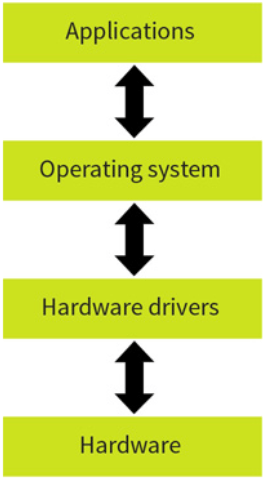
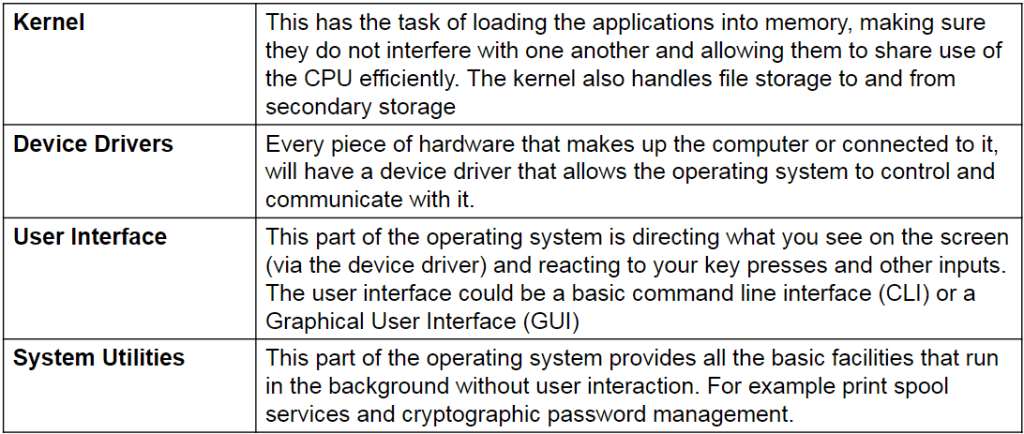
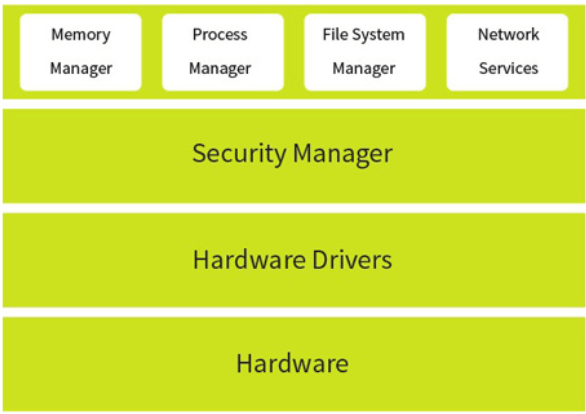
The operating system is a set of software that manages all the hardware and software on a computer. It enables the user to interact with the hardware and handles input and output devices. The OS sits in between the applications you run and the hardware, using hardware drivers to communicate. When a programmer designs a program, they do not need to worry how and where it is saved on the computer, the OS handles that.
For example if an application prints something, it hands the task to the OS and the OS sends the instructions to the printer and sends the correct signals using the device driver.
It manages the computer’s resources such as storage, memory, input and output devices as well as all of its software. It also allows you to communicate with the computer without knowing how to speak the computer’s language.
No matter what type of computing device it is, the operating system is always responsible for:
Memory Management
File Management
Input & Output Management
Processor Time Management (scheduling)
Providing the human/computer interface
Providing the system services such as printing spooling
Handling all types of error while doing the above
Different OS’s such as Windows or linux or MAC OS.
Parts of the OS:
Practice Question:
Using an example, explain why an Operating System is essential when running applications on a computer. (4 marks), Criteria: 2 for detailed reason why an operating system is needed to run a program, 2 for detailed example of a programs need for an OS.
The reason why applications require an operating system is because they need something to manage it and connect it to other parts of the device. The OS acts as this bridge from the application to the hardware of the computer. For example, the program relies on the OS to send and receive signals to and from a printer, using drivers to send correct signals.
Types of Operating Systems:
Distributed OS
Embedded OS
Multi-Tasking OS
Multi-User OS
Real-Time OS
Distributed OS:
This is where multiple systems are linked by LAN and act as one OS. Processes can move between different computers so tasks can be split among the computers to split the workload.
Embedded OS:
This is a specialized operating system that is designed to perform a specific task for a device that is not a computer. For example, an MP3 player.
Multi-Tasking OS:
This is where it enables the user to run more than one task at a time. For example, you can run 2 programs at a time. Nearly all systems run a multi-tasking OS, such as windows or mac. Tasks can be interrupted by new tasks of higher priority.
Multi-User OS:
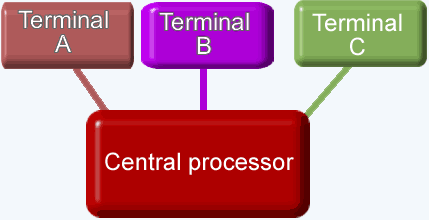
This is where a computer system allows multiple users on different computers to access a single system’s OS resource simultaneously.
Real-Time OS:
This is where the OS uses a single processing core but is able to perform multiple tasks. It does this by quickly switching between programs based on their priorities which makes it seem as if it is running multiple processes at once. This OS can guarantee a certain capability within a specific time constraint.
There is 2 types of real-time OS: Event driven and time sharing.
Event-driven is when it switches tasks only when a higher priority task comes in.
Time-sharing is when it switches tasks on a regular clock interval, and on events.
Spooling:
Spooling is the process of sending an output (intended for a printer or other peripheral) to a file on the memory or secondary storage temporarily to be forwarded to the printer when the printer is ready. Spooling is essentially a buffer between the fast CPU and slow printer.
Advantages of Spooling:
Avoids delays – printers (or other peripherals) are relatively slow and so spooling frees up the processor quickly and allows it to get on with other processing jobs.
Allows more than one print job to be submitted at a time – each job will be held in a queue and printed one at a time – the use of a queue also allows priorities to be set.
In a multi-user system, provides a method of keeping print-jobs separate – it means that printouts will not be muddled up.
It is important to realise that the output itself is not placed in the queue. The queue simply contains the details of the files that need to be printed.
Booting:
This is the process of starting the computer. The main sequence of start up events are:
To check basic hardware, load low-level drivers and then initialise the loading of the operating system into the memory. This process is begun by a boot file located in the BIOS.
When a computer is switched on, the RAM is empty so the CPU has no instructions to follow. Booting happens in small steps because at this point, the computer is essentially dumb. It is not aware of any hard disks, or any peripherals such as the screen or keyboard.
The piece of software involved in booting up a computer is the BIOS (Basic Input Output System) which is stored in the ROM.
BIOS:
This is not part of the OS and needs to work before the OS is loaded up. It is stored on a BIOS chip on the motherboard. It contains the most basic hardware settings of the computer and a set of instructions to begin the boot up process. Some of the basic hardware settings include hard disk details, memory capacity and memory timings. The boot order can also be set to look at which drive to find the operating system.
First Stages of Boot up:
The first thing that happens when the ‘on’ switch is pressed is that the power supply turns on.
A power supply can take a second or more to become stable. Once it is producing a steady output, it sends a ‘Hardware Reset’ signal to the CPU. This signal travels along a wire directly to the CPU (it is part of the control bus)
The CPU Hardware Reset command is hard-coded by its designers to execute an instruction at a specific location within the BIOS chip. This location contains a ‘Jump’ command that points it to the starting address of the BIOS start-up program. This first instruction is loaded into the CPU program counter and booting is underway.
POST (Power On Self Test):
At this point there is nothing in the RAM so the computer knows nothing about its own hardware.
The BIOS then does some hardware and system health checks including:
BIOS is not corrupted
System chips are OK
Processor is OK
System Memory is OK
Keyboard is present
Video display memory is OK
If a problem is detected, a small speaker on the motherboard emits a set of “beep codes” to inform the user of the problem as the screen is not on at this point.
Hardware Prep:
Once POST has been passed the BIOS will initialise the internal devices such as video cards and drives, following the boot order.
Loading the OS:
When the CPU boots up a drive, it looks at a part of the drive called the Boot Sector and runs the instructions stored there. Different drives have different instructions. For example, a hard drive contains a table telling the CPU how the memory on the drive is partitioned called the Master Boot Record. From this table the BIOS finds which drive holds the OS and goes to that drive and looks for the Boot Loader. After the OS is loaded into the memory a script called the boot file is run. This prepared the computer to use and contains things such as desktop appearance.
Drivers:
This is a core part of the operating system. Every piece of hardware that needs to communicate with the OS needs a device driver to do so. Device drivers differ from each OS so if you install a different OS into your computer you need to check the drivers. Device drivers are stored in a file called the registry.
Virtual Machines:
Programs work differently on different computers, for example a Windows pc program won’t run on an Xbox.
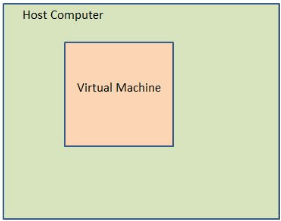
To solve this using virtual machines, you get your computer to create a copy of the software you need to run the program and run the program inside that software. “a computer inside a computer”.
This process is called virtualisation. There can be many VM’s running on a single host.
Just like any other computer, you can install an OS in the virtual machine and run the desired programs.
The only limitation is that you cannot create a virtual machine that requires more hardware resources than your real computer has. For example, you cannot run a desktop computer program on a small handheld calculator processor.
Benefits and Uses:
You can run older applications that are not compatible with newer operating systems.
You can run multiple operating systems on a single computer.
Virtual machines are very easy to copy and back up once they’re installed.
Shielding malware. You could use a virtual machine to open files you think might contain malware but you still need to check if it is real or not.
Web hosting companies can create and sell many ‘virtual servers’ within a single physical server.
Disadvantages:
Programs will run less efficiently (ie more slowly) on a virtual machine than they would on the original hardware.
You still need proper licences to run the operating system and applications within a VM – they are under copyright law as any other, so they cannot just be copied.
Intermediate Code:
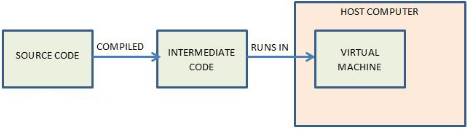
In addition to hosting OS’s, virtual machines are also used to run code designed for a specific virtual machine. Instead of a programmer rewriting source code for all different OS’s, they can write it and compile it into Intermediate code, or Byte Code, which is designed for a virtual machine. Programs can then be run on a virtual machine, no matter the OS that the host computer is running.
Examples:
The Java Virtual Machine (JVM) is popular and has been ported to nearly all hardware platforms. It is designed to run Java intermediate code. The source code is written in Java which is then converted into intermediate code by the compiler.
Another example is the Adobe Flash Actionscript Virtual Machine (AVM). The code is written in Actionscript which is then converted into flash byte code to run in the AVM.
Benefits:
Portable. The same code can run on any hardware platform that supports the virtual machine.
No need to change the source code.
Issues:
Security. The current version of the VM may have security vulnerabilities that allow rogue code to take control of the host computer. This is why this type of VM is patched quite frequently with updates.
Summary:
A VM is designed to simulate a fully functioning computer but in software.
There can be may VM’s on a single host.
There are VM’s designed to emulate the hardware of a computer.
Running a VM allows multiple OS’s to run to be used on a host computer.
There are both free and commercial virtualisation software available.
Running an OS on a VM is less efficient than running it on original hardware.
Compression is a process of which a computer reduces the size of a file while retaining most/all of the original information. You can compress many types of files including music and video files. This means it takes up less storage space and makes uploads and downloads faster.
Streaming services such as spotify or youtube compress the content that they provide to reduce the amount of bandwidth required to transfer the file. This makes the service faster but sometimes reduces the quality.
Summary: Purpose of compression is to Reduce download times, reduce storage requirements and to make the best use of bandwidth.
Lossy Compression:
This type of compression permanently discards bits of information in the file to greatly reduce the file size. However, this is irreversible so the quality of the content is also reduced. Most of the data removed is mostly inaudiable/unseeable data to the overall affect on the quality isnt noticed too much. The original file can not be restored.
It works by using an alogrithm to process the file and identify patterns and decides what it can discard without affecting the quality too much.
Summary: Actual data is removed from the file to reduce its size.
Examples of Lossy Compression:
JPEG (Image):
The JPEG format uses an alogrithm to remove details that will not be seen by the human eye. It also reduces the quality of the background image since the main focus is usually the foreground. This helps reduce the file size whilst not affecting the main focus of the image.
MP3 (Sound):
This format uses multiple techniques such as removing inaudible frequencies and removing sounds that would be drowned out by other louder noises. The bitrate is the number of bits per second that are encoded by the MP3.
Lossless Compression:
This is a compression technique that reduces the file size but without reducing the quality. It does this by looking at the repeating patterns in a file and saves it one time but says how many times it needs to be repeated and where. This technique can not reduce the file size as much as lossy can.
Summary: Actual data is still removed but this data is encoded in a way that the file size reduces but more importantly, the original file can be recreated easily.
Lossless compression methods include: Run Length Encoding and Dictionary Based Methods.
Examples of lossless compression:
Run Length Encoding:
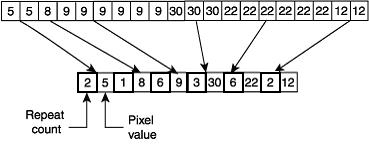
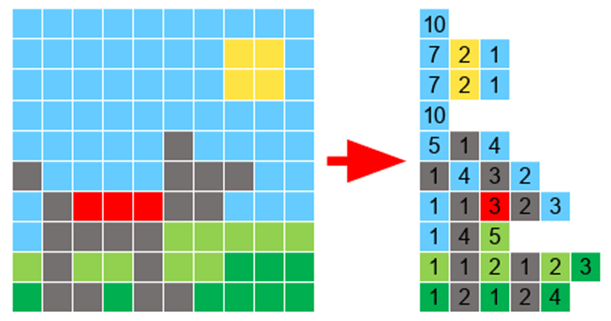
This is where the algorithm sees that there are multiple bits being repeated consecutively and records the colour and how many times it is repeated. E.g: If an image had 3 red pixels next to each other, rather than storing each pixel individually, it would store the pixel colour and the amount of times it is repeated.
However if a file contained little to no repetitions then it would increase the file size as a single pixel would be stored as its colour and then the information that it is repeated only once.
Dictionary Encoding:
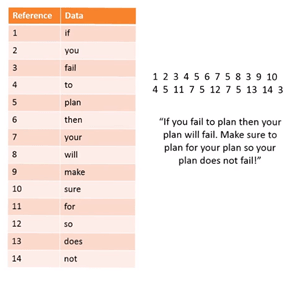
This is where it takes words that are used and assigns a reference number to the word/phrase instead of storing the bit pattern word for word. It then creates a separate file called the dictionary where the reference number and word is stored. You can then use the reference numbers to write out the text which will overall take up less space.
Lossy vs Lossless:
The main difference is that lossy loses some of the original quality whilst lossless retains all of the inital quality. Also, lossy usually creates a smaller file in the end as information is discarded completely.
Encryption:
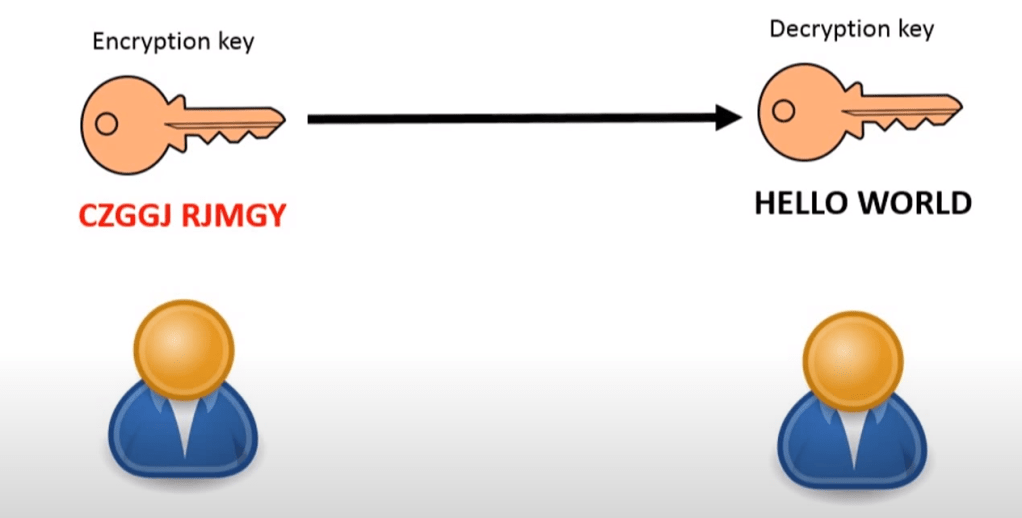
The process of encoding a message so that it can be read only by the sender and the intended recipient.
Example of simple encryption:
Caesar Cipher:
When you shift along a number of places. This number is called the key.
Example: you shift the alphabet by 5 places.
2 major types of encryption: Symmetric and Asymmetric.
Symmetric Encryption:
In this method, the same key is used to encrypt and decrypt the message. Both the sender and recipient need to know the key. The same key can be used many times or different key every time to make it harder to crack.
Symmetric encryption is much less secure than asymmetric so this is usually not used for important information such as payment details.
Asymmetric Encryption:
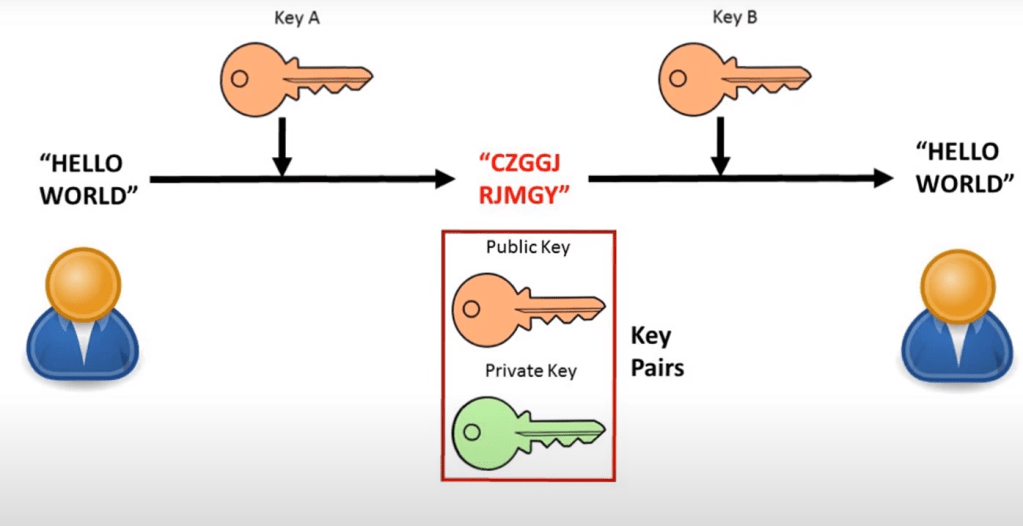
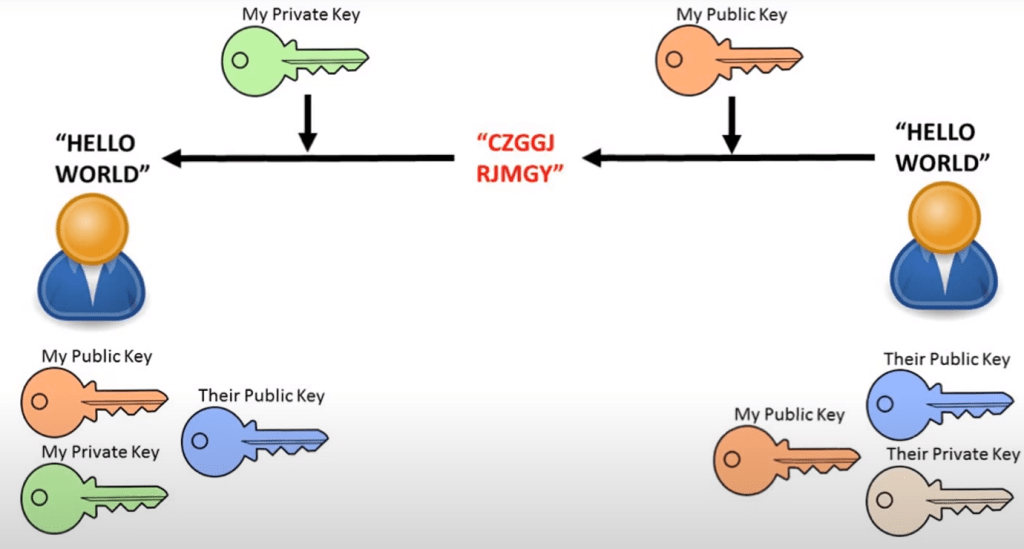
This is a more secure encryption than symmetric as it uses a different key for the sender and recipient so you have 2 totally different keys.
The message is first encrypted by the first key. At the end, the message is decrypted by a different key. It is impossible to work out one key from the other. The 2 keys are generated in a way that the message encrypted by one key can be decrypted by the other. Together, these 2 keys form “key pairs”.
To make asymmetric encryption to work we have to pick one of the keys to be a public key which can be stored anywhere such as published online. They are usually stored on servers called key servers. The other becomes the private key. This should not be shared with anyone else.
How it works:
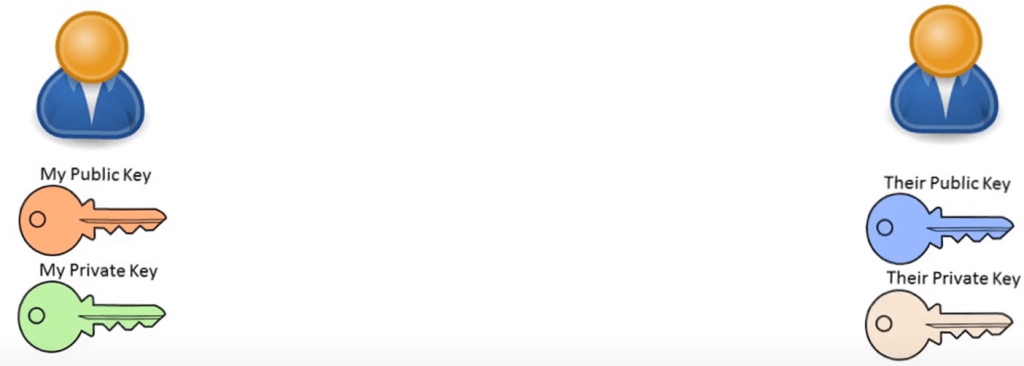
Firstly, we start with 2 people who want to securely communicate, both with their own key pairs.
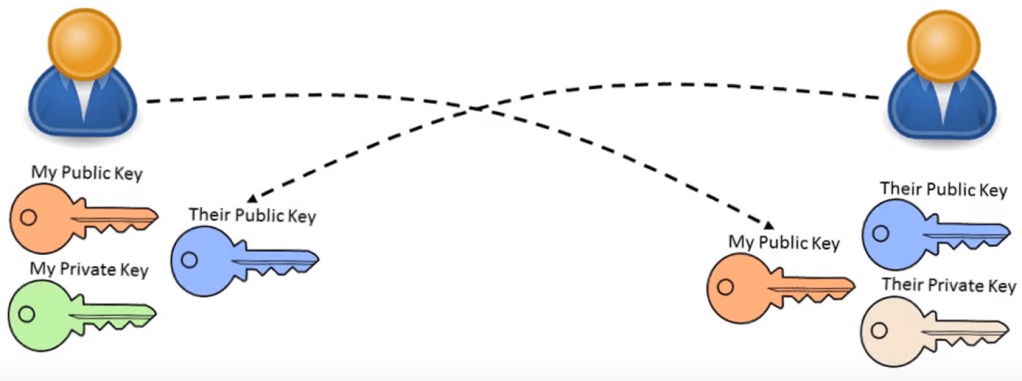
They then exchange copies of their public keys with each other.
They then send each other messages encrypted with the others’ public key. You send a message encrypting it with the other persons public key and they can decrypt it with their private key.
You can also encrypt a message with your private key and send it out and this means your message can be decrypted with your public key. The fact that it can be decrypted with your public key means that it must originally be encrypted by your private key so the message can be seen as authentic.
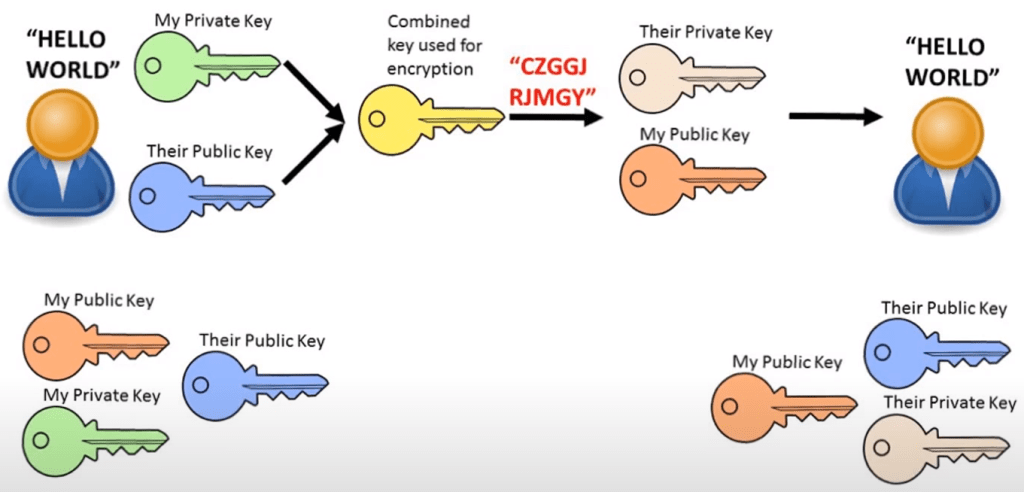
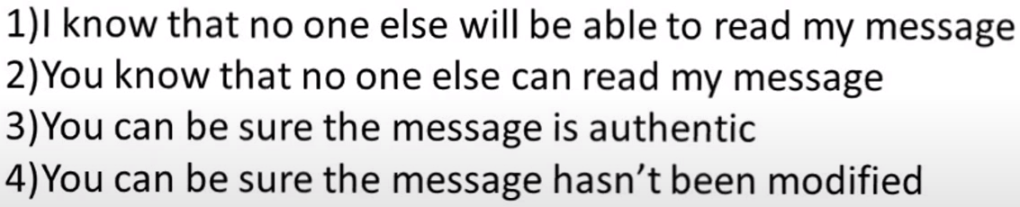
To get a more secure way, you can combine both your own private key and their public key to create a combined key. Then they use your public key and their private key to decrypt it. This way both parties can be sure that nobody can read the message and that it has not been modified by somebody else because it requires both keys to decrypt.
Hashing:
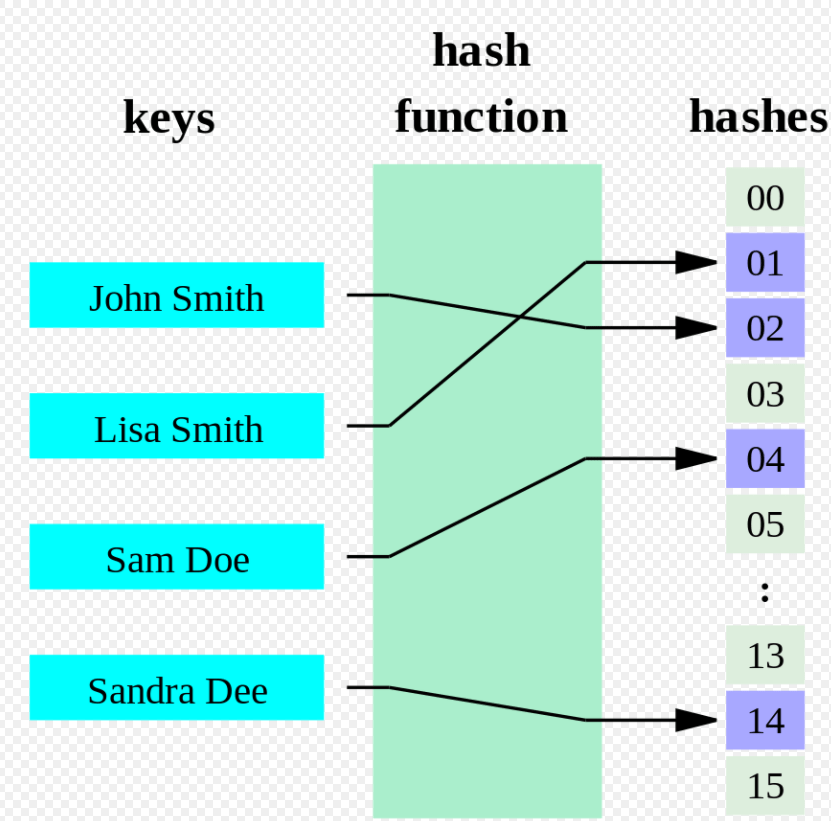
Hashing is a process used to transform a data item into something different.
It can be used as an encryption protocol or used to efficiently search and retrieve data quickly from a database.
Hashing is one way. Once you convert a data item into hash, unless you know the original data item, it is lost forever.
For example: 23+27=50
If we know 50, the original could have been 20+30 or 49+1 etc. so there are too many posibilities.
Uses:
Quick way to generate disk addresses for storing data on a random access device.
Storing and checking of passwords during logins.
Hashing with logins:
When you set a new password, it gets stored as a hash and the password is then deleted. When you type in a password to try and login, it converts your entered password into hash using the hashing algorithm and compares the two hashes. If they match, you gain access, if not, then you get denied.
Search engine indexing is when web companies such as google start up a web crawler program. The program sends out spiders that travel through the world wide web along hyperlinks to each website, collecting keywords and meta data about that website to be stored in their search engine database. This data is then sorted and ordered to make search times very quick.
Page Rank Algorithm:
The page rank algorithm is an algorithm developed by google to rank web pages in an order of relevancy according to your search. There are hunderds of factors that the algorithm considers including, Domain name, Frequency of search term in web page, Age of web page, Frequency of page updates, Magnitude of content updates, Keywords in <h1> tags.
The original page rank algoritm is:
PR(A) = (1-d) + d (PR(Ti)/C(Ti) + … + PR(Tn)/C(Tn))
PR(A) is the PageRank of page A
PR(Ti) is the PageRank of pages Ti which link to
page A
d is the damping factor
C(Ti) is the number of outbound links on page Ti
For the first iteration, we assume that the page’s rank is 1 and then only after several iterations is it accurate.
Server And Client-Side Processing:
A client is any device that is connected to a service, such as a computer or a phone. Client Side Processing is when data is processed before it is sent to the server. On the web this happens in the form of a script. The web page does not communicate with the server at this point.
An example for client side processing is JavaScript on a webpage. This may be used for validation before being sent to the server.
Advantages:
Quick execution and response times as it does not have to communicate with the server. Everything is local at this point.
Removes potentially unnecessary load on the server.
Removes risk of data being intercepted on the way to the server, increasing security.
Disadvantages:
Not all browsers support all types of scripts.
Dependant on the performance of client-side machines.
Different browsers can process scripts in different ways so the page may look different to what the developers intended.
Differences between use of CISC and RISC processors.
Complex Instruction Set Computer (CISC):
This type of processor attempts to reduce the number of instructions per program, however meaning the number of cycles per instruction is increased and hardware complexity is increased as it needs to understand more complex instructions. CISC architecture is designed to decrease the use of memory as memory is very expensive. It does this by shortening down instructions so less RAM is required to store instructions. This means that a CPU can perform complex tasks with one instruction. E.g: MULT 2:3, 5:2.
Reduced Instruction Set Computer (RISC):
These processors can only support small, simple instructions which can be completed in a single clock cycle. This means that more complex instructions need to be split up into multiple lines of instructions to perform a task. E.g: The MULT 2:3, 5:2 from CISC needs to be represented like this for a RISC processor.
LOAD A, 2:3 LOAD B, 5:2 PROD A, B STORE 2:3, A
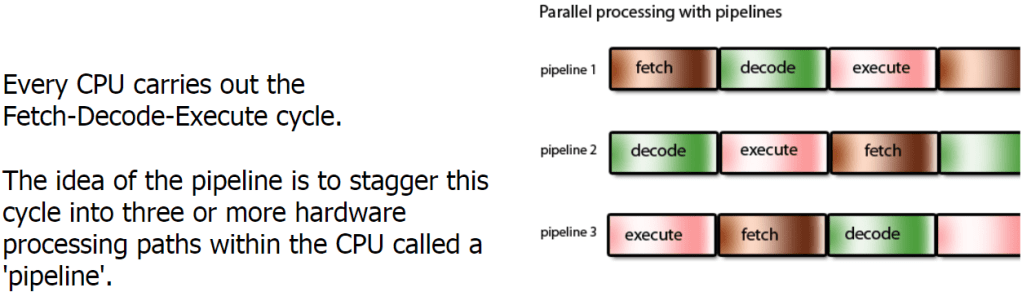
Pipelining:
Pipelining is when the CPU processes more than one piece of data simultaneously. Processes can “overlap”. Multiple instructions are overlapped in execution.
The benefit of pipelining is to increase throughput but without decreasing latency.
Throughput: Rate at which tasks are completed.
Latency: The time it takes to complete a single task.
Pipelining did not reduce completion time for one task but it helps throughput of the entire workload in turn decreasing the completion time.
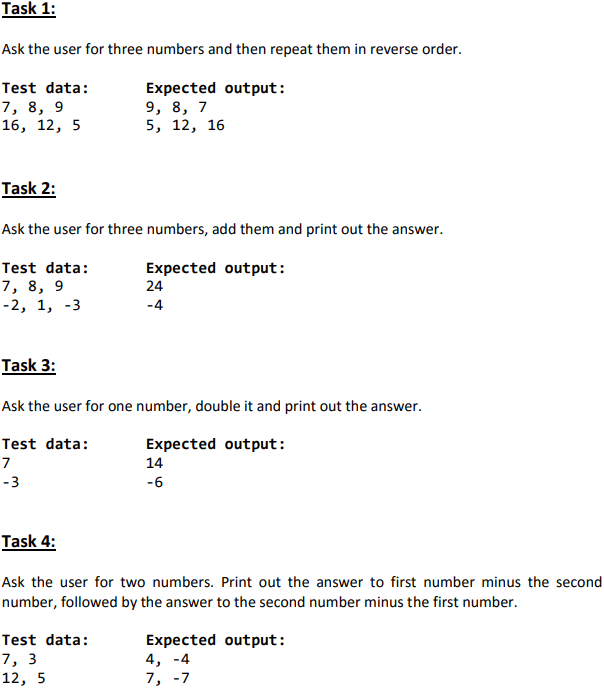
INP
STA 99
INP
STA 98
INP
OUT
LDA 98
OUT
LDA 99
OUT
Task 2:
INP
STA 99
INP
STA 98
INP
ADD 98
ADD 99
OUT
Task 3:
INP
STA 99
ADD 99
OUT
Task 4:
INP
STA 99
INP
STA 98
LDA 99
SUB 98
OUT
LDA 98
SUB 99
OUT
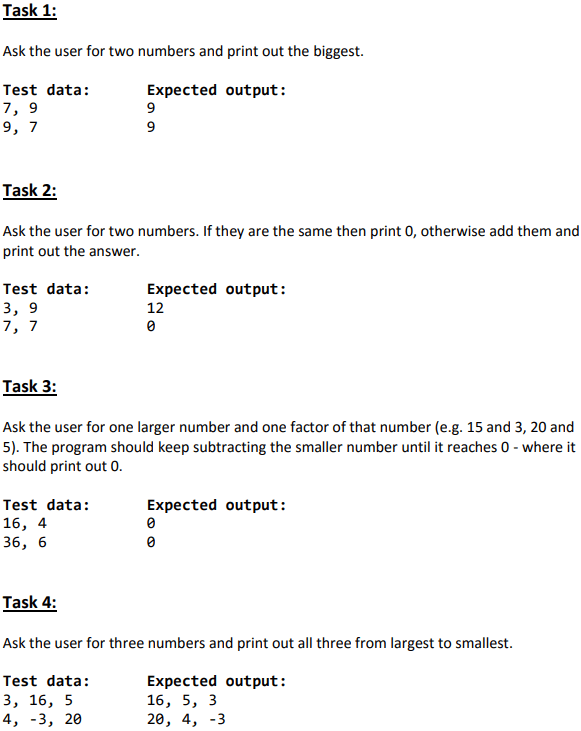
Part 2:
Task 1:
INP
STA 99
INP
STA 98
SUB 99
BRP 9
LDA 99
OUT
HLT
LDA 98
OUT
Task 2:
INP
STA 91
INP
STA 92
SUB 91
BRZ 8
LDA 91
ADD 92
OUT
Task 3:
Task 4:
INP
STA 99
INP
STA 98
INP
STA 97
SUB 98
BRP 10
LDA 98
STA 90
LDA 97
STA 90
LDA 97
SUB 99
BRP 17
LDA 99
STA 91
LDA 97
STA 91
LDA 98
SUB 99
BRP 24
LDA 99
STA 92
LDA 98
STA 92
LDA 90
OUT
LDA 91
OUT


INP
        STA 97
        INP
        STA 99
        INP
        STA 98
        SUB 99
        BRP 11
        LDA 99
        STA 90
        BRA 13
        LDA 98
        STA 90
        LDA 90
        SUB 97
        BRP 19
        LDA 97
        STA 90
        BRA 21
        LDA 97
        STA 91
        LDA 91
        SUB 99
        BRP 28
        LDA 91
        STA 92
        LDA 99
        STA 91
        LDA 99
        STA 92
	LDA 91
        LDA 90
        OUT
        LDA 91
        OUT
        LDA 92
        OUT
When we write code in a language such as python, this is readable and understood by us humans. This is known as source code. Processors can’t understand this source code so it needs to be translated into machine code. A compiler is any program that takes source code and translates it into machine code.
Source code allows software to be created without needing to understand the complex workings of a processor. The programming language hides lots of the complexities of a processor.
Each processor architecture, e.g: ARM or x86, has its own set of opcodes (instructions). The compiler must know the architecture of the processor before beginning to compile as different processors are not compatible with certain computers. Each line of source code can equal many lines of machine code.
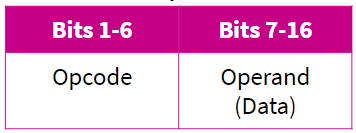
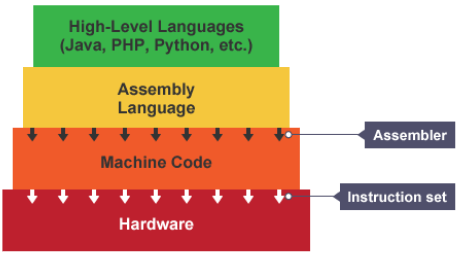
Machine code is a binary representation of a set of instructions, split into opcode and operand (instruction’s data).
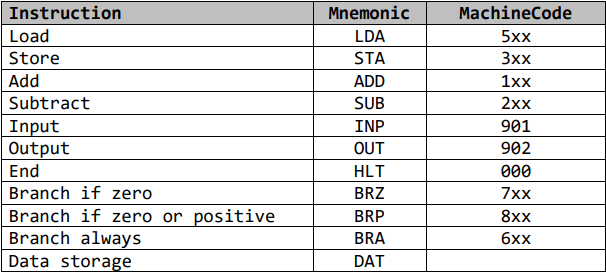
Assembly language uses text to represent machine code instructions, or mnemonics.
Each processor architecture has a set of instructions that it is able to run. This is known as an instruction set. Despite differences between instruction sets, machine code holds a common structure.
Opcode: Operation code
This is the instruction that needs to be performed.
Operand:
This specified the data that needs to be acted on and the location of it.
How The CPU Works:
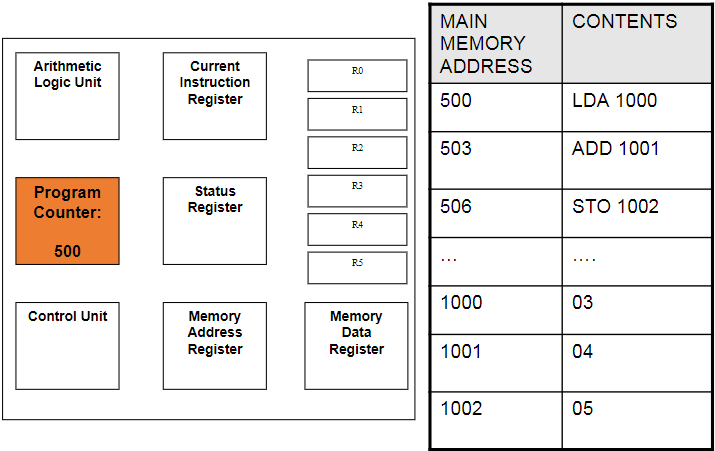
Fetch: The next instruction is fetched from Main Memory.
Decode: The
instruction gets interpreted/decoded, signals produced to control other
internal components (ALU for example).
Execute: The instructions get executed
(carried out)
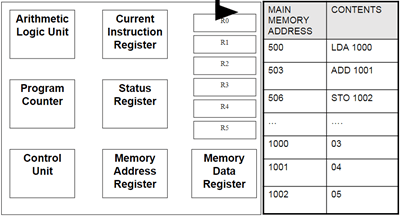
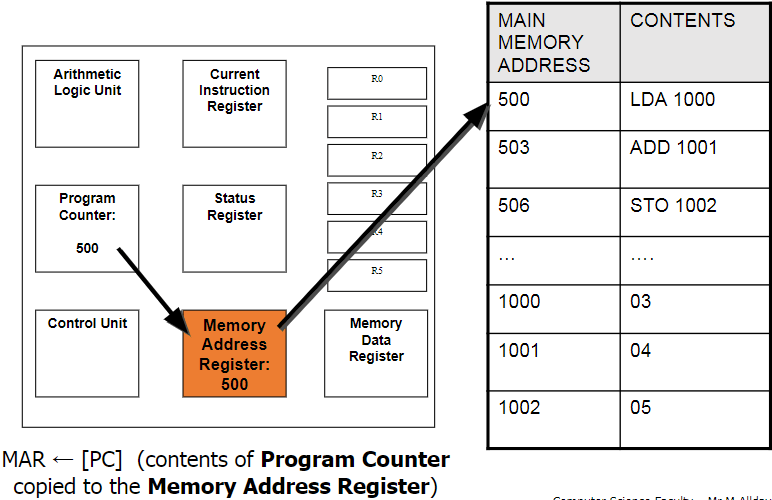
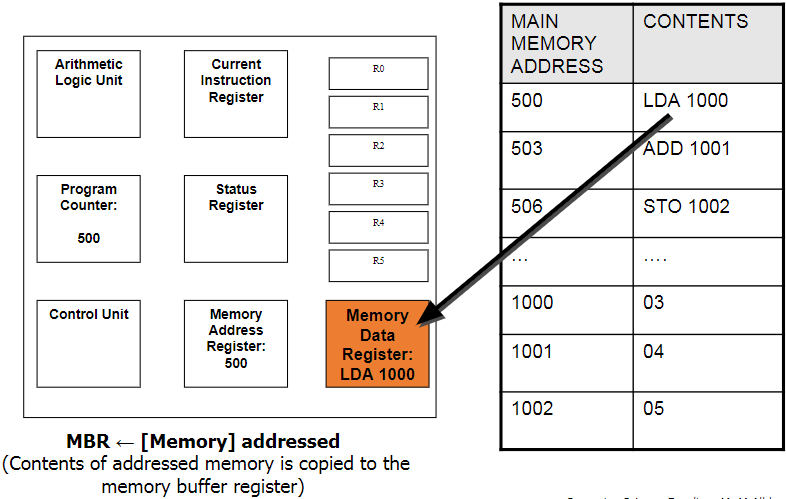
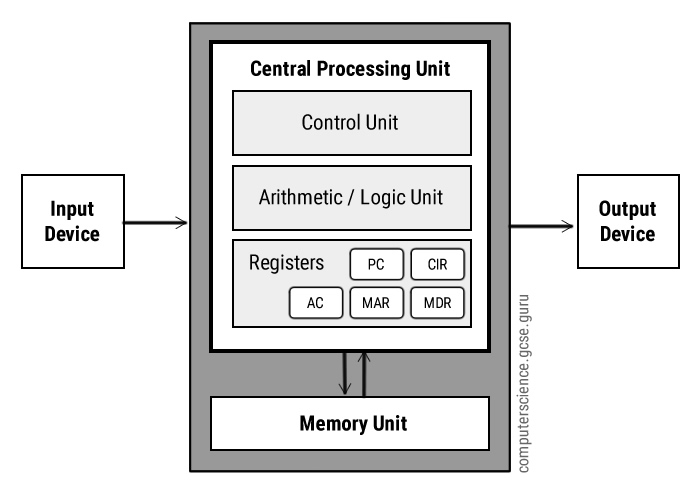
PC → MAR → MDR → CIR
Program Counter (PC):
This holds the address for the next instruction that is to be Fetched-Decoded-Executed. This will increment automatically as the current instruction is being decoded to point to the next address. Also known as the address pointer.
Memory Address
Register (MAR):
This holds the address of the instruction that is currently being executed. It points to the location in the memory where the needed instruction is being stored. The next address is copied from the PC.
Memory Data
Register (MDR):
This is where the data/instruction from the address given by the MAR is fetched and stored, until it is ready to be sent over to the CIR to be decoded and executed.
Current
Instruction Register (CIR):
This is where the current instruction is being stored while
it is being decoded and executed. While this is happening, the next instruction
is being fetched into the MDR.
Control Unit (CU):
This coordinates all the Fetch-Decode-Execute activities that are happening. At each clock
pulse it controls the movement of data and instructions between the registers,
main memory and input and output devices. Some instructions take less time than
a single clock cycle but the next one can only start when the next cycle is
executed.
Status Register
(SR):
This stores a combination of bits used to indicate the
result of an instruction. For example, one bit will indicate an overflow,
another bit will indicate a negative result. It also indicated whether an
interrupt has been received.
Arithmetic Logic
Unit (ALU):
This carries out arithmetic and logical operations that are
required. Basically performs the calculations and makes logical decisions.
Accumulator (ACC):
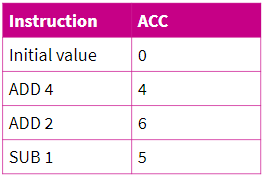
Any instruction that performs a calculation makes use of this. Many instructions operate in the ALU on this and the result is stored on the ACC. The calculations take a step-by-step approach so the result of the last calculation is part of the next one.
Jump Instructions:
These are used to jump to the specified address and continue from there if a certain condition is met. If not, then it will continue on as normal. For example, the instruction can specify that if the result in the ACC is positive, jump to a certain address.
Bus:
This is a path down which information is passed down. There are 3 main types: Data bus, Address bus, and Control bus.
Data Bus: This is used to transfer data that needs to be transferred from one part of the hardware to another.
Address Bus: This contains the address location of where the data bus should transfer the data to. The address and data travel together until the address is reached.
Control Bus: This is what the control unit uses to send out the commands to different components.
Common CPU Architectures
Von Neumann architecture:
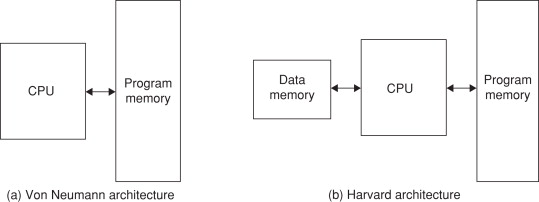
This is a CPU architecture developed by John Von Neumann in 1945. It is based on the stored program computer concept where data and instructions are stored in the same memory unit. This also means that there is only 1 bus connecting data and instructions to the CPU. This creates the Von Neumann bottleneck, which is where instructions can only be carried out one at a time. The bandwidth of this bus plays a large part in the performance of a CPU with the Von Neumann architecture. Cache also plays a part as more cache means more data can be stored in the CPU so the bus is not needed for frequently used programs. Also CPU’s need 2 clock cycles to complete an instruction as instructions/data have to be moved to and from the memory unit along the same bus.
These processors are usually used in computers and similar devices.
Von Neumann Architecture
Harvard architecture:
This was developed by Harvard Mark in 1939. It is similar to the Von Neumann architecture but it has 2 different memory units to store data and instructions so it has 2 separate buses for sending and receiving data and instructions. This removes the Von Neumann bottleneck and also takes only 1 clock cycle to complete an instruction. However the design and cost is more complex and expensive as it requies an additional bus and memory unit over the Von Neumann architecture.
These processors are usually used in smaller scale devices such as microcontrollers, signal processing and alarms.
Harvard Architecture
Multicore System:
Before multiple cores, scientists used to add more and more transistors onto the CPU’s to improve performance. Now we have got to the stage where we can not physically fit anymore transistors onto the CPU. Then we started putting more cores into the CPU to improve performance.
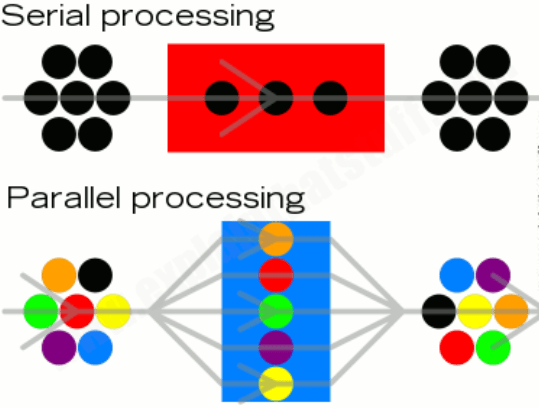
Parallel system is a CPU that has more than one processing core. In a parallel system, 2 or more cores work simultaneously to perform a single task. Tasks are split into smaller sub-tasks to be shared out among the cores which hugely decreases the time taken to execute a program. E.G: One core can fetch, another can decode and the other can execute the data.
Parallel systems are usually places into 1 of 3 categories:
Multiple instruction, single data (MISD) systems have multiple processors, with each processor using a different set of instructions on the same data set. E.G: Space Shuttle Flight Control Computers.
Single instruction, multiple data (SIMD) systems have multiple processors that follow the same set of instructions, with each processor taking a different set of data. They process lots of different data simultaneously, using the same algorithm. E.G: Weather Forecasting
Multiple instruction, multiple data (MIMD) systems have multiple processors, with each processor able to process instructions independently of each other. This means a MIMD system can process a number of different instructions simultaneously. E.G: Flight Simulators.
All the cores in a parallel system need to constantly communicate with each other to ensure that changes in the data of one core is taken into account in the calculations happening in other cores.
At the start of parallel systems the complexity of splitting instructions up to multiple cores to process meant that it was still quicker to use a single core to process an instruction as it needed to split the workload and combine the results at the end. However, programmers have become more adept at writing software for parallel systems and have since made it more efficient.
Co-processing:
Another way of implementing multiple cores is by using a co-processor. This involves another additional processor to the system which is responsible for a specific task, such as graphics card.
GPUs:
This is a type of processor that is dedicated to handling complex calculations needed for graphics rendering. This is a common example of a co-processing system. GPU’s are usually located on a separate graphics card that requires their own heat sink to function properly. Popular examples of GPU manufactures include nVidia and ATI, each having their own hardware design and specialist programming techniques to ensure best performance.
A GPU is a form of co-processor and is used with the CPU to accelerate performance of applications. For example,the compute-intensive part of an application is offloaded to the GPU to decrease the CPU’s workload. This significantly improves performance of the system.
The quality and performance of the GPU varies hugely. For example integrated graphics chip that you could find in a notebook could run lighter applications such as Microsoft Word well but would struggle to handle more complex tasks such as games.
As GPUs have become more powerful, they are used in an increasing number of different areas other than gaming. From scientific research to financial modelling.
Task: Investigate the factors affecting the performance of the CPU, including clock speed, number of cores, cache.
Clock speed this determines the number of cycles per second that a processor goes through. The higher this number is, the more instructions the CPU can complete per second. These days processors can easily reach up to 4 GHz meaning they can perform up to 4 billion instructions per second on one core. Increasing clock speed can improve overall load times and responsiveness.
Number of cores determines the number of instructions that can be executed per cycle. If you had one core then only one instruction can be decoded and executed per cycle but if you had 4 cores (quad core) then it enables 4 instructions to be decoded and executed per cycle. This can greatly improve performance when you are using multiple programs simultaneously.
Cache in the CPU holds data/instructions from programs that are used frequently. When program data gets stored in the cache it greatly increases the load time when you open it again. However cache is very expensive which is why there is usually so little available. This improves performance of frequently loaded programs but it is volatile so only until you power your PC off.
REDO:
One factor that affects CPU performance is Clock Speed. This determines the number of clock cycles per second that the processor executes. The higher this number is, the more instructions that the CPU can potentially execute per second, as some instructions may take longer than a single cycle. Increasing clock speed can improve overall performance and responsiveness of your device. This means that programs load up quicker and elements inside the program will respond quicker. E.G: The time it takes for a menu to come up when you click on it. However, increasing clock speed too much will have the downside of high temperatures and possibly instability. This means that your CPU will put out more heat energy the higher your clock speed is which may introduce thermal throttling so the benefit of overclocking the clock speed would be nothing and you would be just left with higher temperatures. Overall a higher clock speed, to a certain extent, is beneficial to the performance of your device but in modern CPU’s, increasing clock speed won’t have a noticeable performance gain unless you are doing professional work.
Another factor is the number of CPU cores. The number of cores determines how many instructions your CPU can execute per cycle. If you had one core then only one instruction can be decoded and executed per cycle but if you had 4 cores (quad core) then it enables the CPU to decode and execute up to 4 instructions per cycle. The number of cores can greatly improve performance when using multiple programs at once. For example, if you had multiple tabs open in a browser it would have better performance with multiple cores as one core can only handle one data stream at a time. However, the down side to more cores is that they are usually more expensive than lower core counts and consume more power. Overall, CPU cores have a large impact on multi-tasking performance, but if you only use few programs at a time, it could be better to opt for a lower core count to save money.
Another factor affecting CPU performance is cache. Cache holds the data/instructions from programs that are used most frequently so they are quick to access. When instructions/data from a program gets stored in cache, it greatly increases the responsiveness and load time of the program when you next open/interact with it. This can greatly improve performance if you use a program freqently. The more cache the CPU has, the less time the computer spends requesting data from slower main memory and as a result programs may run faster. A good example is when you are browsing the internet in a browser. Previous web pages are usually stored in the cache, which is why it loads very quickly if you go back to it. However, cache is very expensive which is why there is usually very little available in the CPU. Overall, cache greatly improves system performance as it holds data inside the CPU so frequently requested instructions/data can load up quickly, irrelevant of RAM and HDD performance but at the cost of high prices.



 Computer Science Notes